> ## Documentation Index
> Fetch the complete documentation index at: https://subframe-59800133-claude-pensive-edison-vkext.mintlify.site/llms.txt
> Use this file to discover all available pages before exploring further.
# Quick edits
> Ask AI in context to edit or insert specific elements.
You can make targeted edits to specific elements using [quick actions](/learn/design-mode/quick-actions).
1. Select an element
2. Right-click or press / to open [quick actions](/learn/design-mode/quick-actions)
3. Select **Ask AI to edit...**
4. Type what you want to change and press Enter
You can also ask AI from the inspector panel:
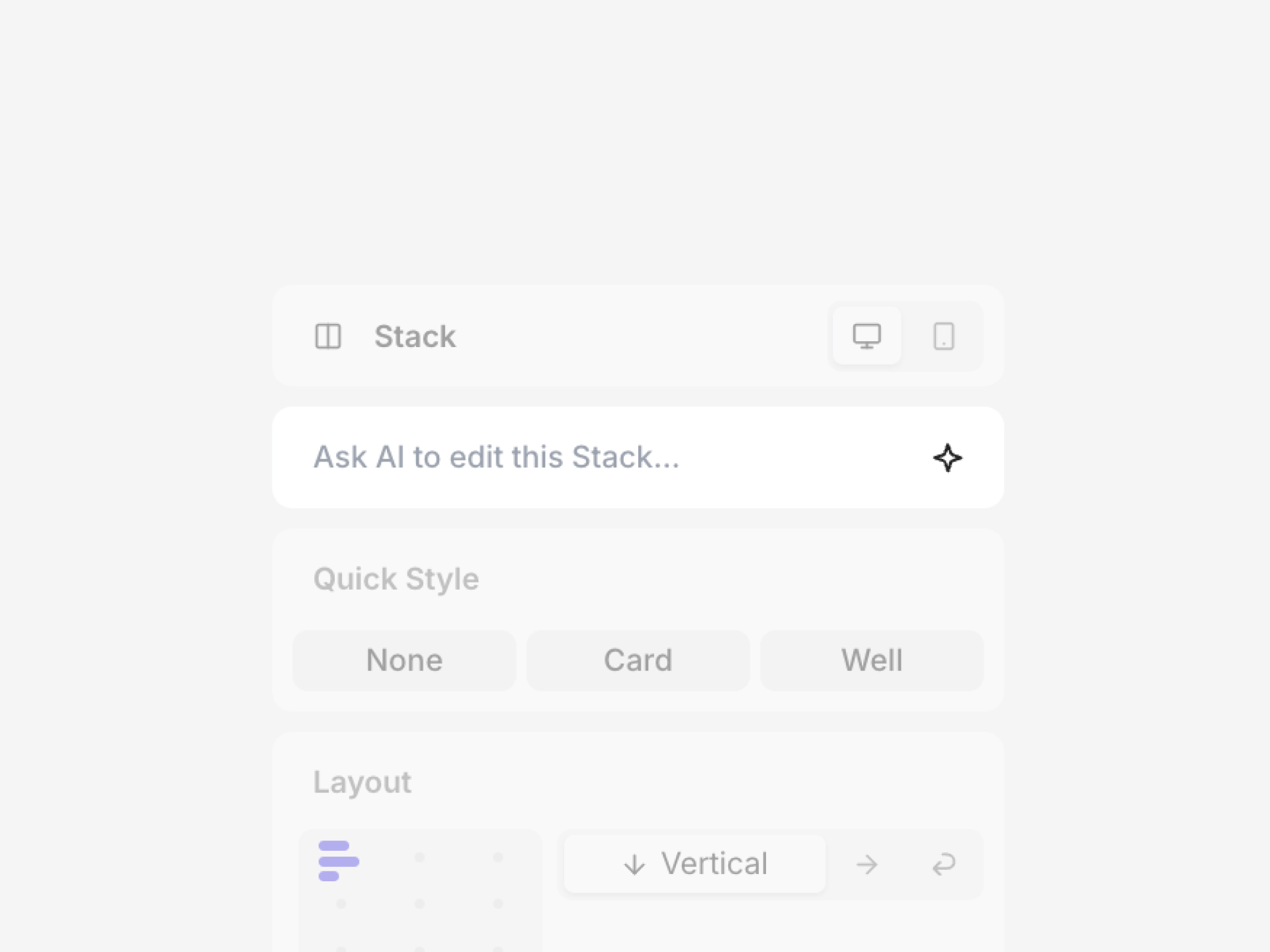 AI replaces or modifies the selected element based on your prompt.
## Quick insert with AI
Open the [quick insert](/learn/design-mode/adding-elements) menu to add new elements using AI.
1. Select an element
2. Click a **+** button (above, below, left, or right)
3. Type what you want to insert
4. Press **Ask AI to insert...**
AI adds the new element next to your selection, automatically applying layout and wrapping stacks for you.
AI replaces or modifies the selected element based on your prompt.
## Quick insert with AI
Open the [quick insert](/learn/design-mode/adding-elements) menu to add new elements using AI.
1. Select an element
2. Click a **+** button (above, below, left, or right)
3. Type what you want to insert
4. Press **Ask AI to insert...**
AI adds the new element next to your selection, automatically applying layout and wrapping stacks for you.